

Want to set up a lightning-fast local WordPress environment on your Mac, but looking for alternatives to Local or MAMP? For those of you in this situation, this article will walk you through the setup process using Herd DBngin. From installation to the initial WordPress setup, you can complete the entire process in just five minutes by following along step-by-step.
I myself used to use MAMP, Docker, Local by Flywheel, and Valet, but in my quest for a lightweight solution, I ended up with Herd DBngin. I’m amazed by how quickly it starts up and how little resources it consumes. I hope this serves as a helpful reference for others facing the same challenge.
Herd DBngin as an Option
When it comes to local WordPress development environments for Mac, tools like Local, MAMP, Docker, and XAMPP are widely known. While all of these are proven tools, for developers seeking speed and flexibility, the combination of Herd and DBngin is quite comfortable.
What is Herd?
Herd is a native PHP development environment released by the official Laravel team. It supports both Mac and Windows, and gets PHP and nginx up and running with a single click. Although originally designed for Laravel, it works with any PHP project, so it can be used directly with WordPress as well.
The key features of Herd are summarized below.
- Fast performance thanks to native binaries
- PHP, nginx, and Composer are available immediately after installation
- PHP version switching is handled entirely via the GUI
~/HerdSimply place a folder under the directoryhttps://ディレクトリ名.testis automatically generated- Low CPU and memory consumption since it doesn’t use virtualization like Docker
- The free version is perfectly practical. The Pro version adds service management and debugging features
What is DBngin?
DBngin is a database management tool for Mac and Windows. You can launch MySQL, MariaDB, PostgreSQL, and Redis with a single click, and switching between versions is easy. It runs as a native binary, ensuring fast performance.
Since Herd does not include a database, using DBngin to supplement it is a standard combination. While you can use the MySQL included with MAMP or install MySQL via Homebrew, the advantage of DBngin is that it allows you to manage multiple versions simultaneously via a GUI.
Comparison with Local by Flywheel
Local is popular as a GUI tool specialized for WordPress. While Local excels in ease of setup, there are several differences when comparing them for development purposes.
| Item | Herd DBngin | Local by Flywheel |
|---|---|---|
| Startup Speed | Fast native performance | Fast |
| Resource consumption | Lightweight (few resident processes) | Light |
| WP-CLI | Manual installation (see below) | Built-in |
| PHP switching | Instant switching via GUI | Can be configured per site |
| Manage multiple sites | Just add folders | Add sites via the GUI |
| Database management | Connect using DBngin, TablePlus, etc. | Adminer built-in |
| Vite / HMR integration | Works well together (native PHP) | Port forwarding may be required |
| Used for applications other than WordPress | Works with anything, including Laravel and CakePHP | WordPress-specific |
| Pricing | All free (Herd Pro is paid) | Free (some features are paid) |
Local is ideal for those who just want to use WordPress or prefer to handle everything via the GUI. On the other hand, if you want to use Vite for theme development, frequently use WP-CLI, or work across multiple PHP projects, Herd DBngin offers a more seamless experience.
Overview of Setup
The setup process consists of the following 5 steps. Once you get the hang of it, you can complete it in under 5 minutes.
- Install Herd (PHP and nginx foundation)
- Install DBngin and start MariaDB (or MySQL)
- Install WP-CLI
- Create a site directory and install WordPress
- Create a database and complete the initial setup in your browser
In the following sections, we will explain each step with accompanying screenshots.
STEP 1: Installing Herd
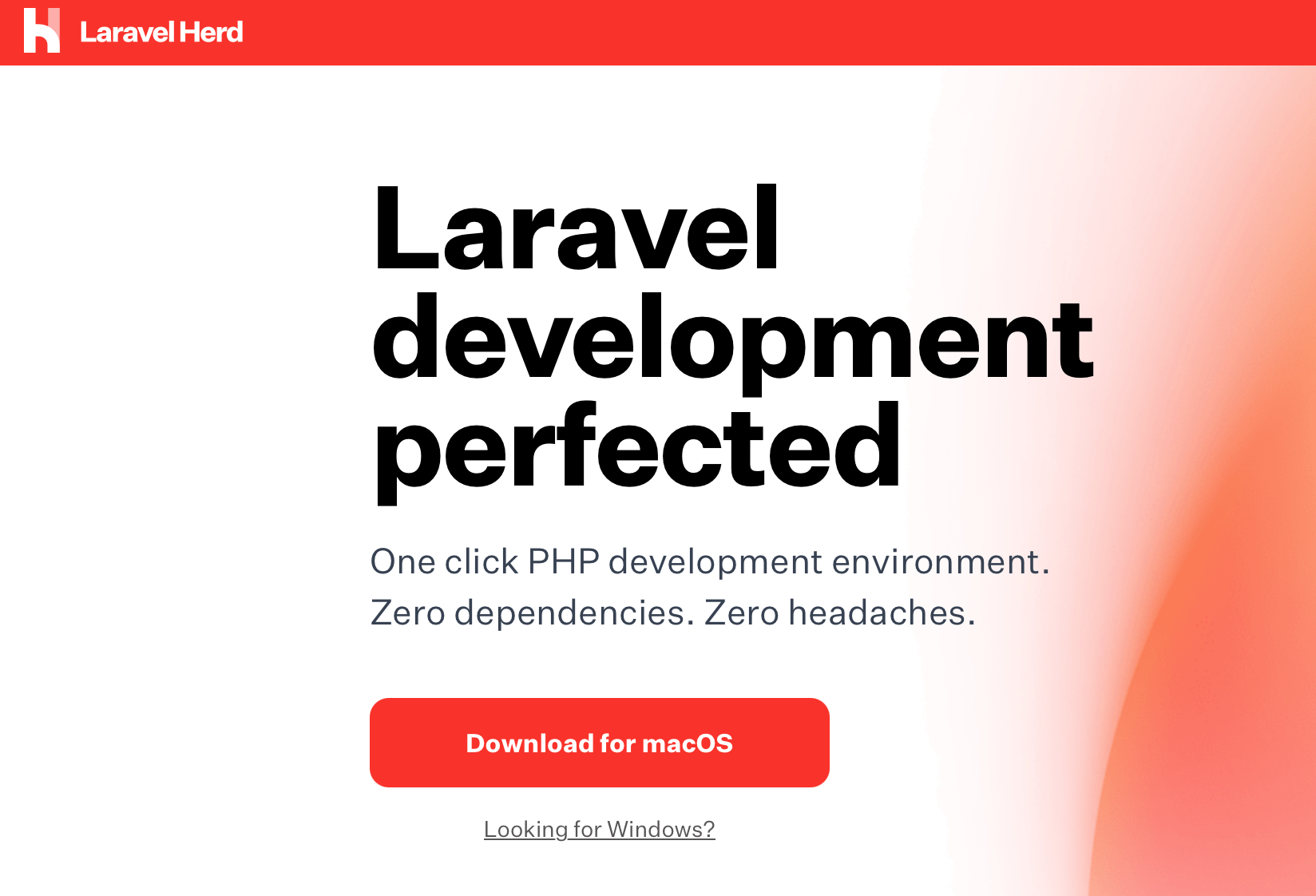
Click “Download for macOS” on the official Herd website to download the DMG file.
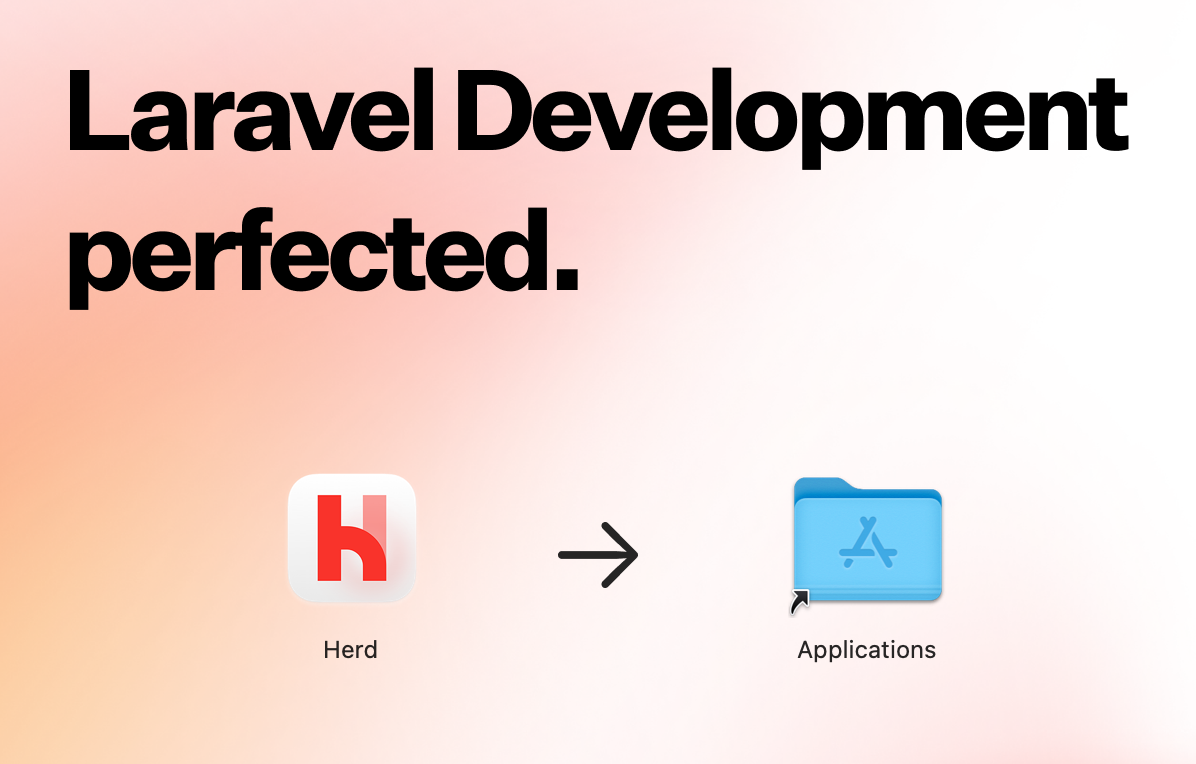
Open the downloaded DMG file and drag and drop the Herd icon into the “Applications” folder.
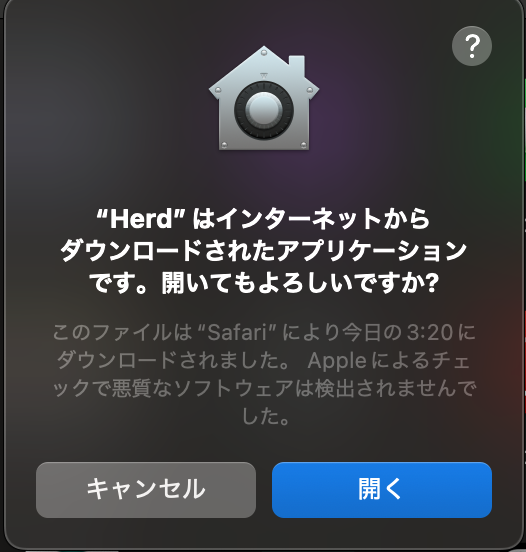
When you launch Herd for the first time, a macOS security prompt will appear. Select “Open.”
Herd Initial Setup
After launching, several setup screens will appear in sequence.
Selecting the Sites Folder: You can leave the default~/Herdsetting is fine. Directories created under this folder will be automaticallyhttps://ディレクトリ名.test.
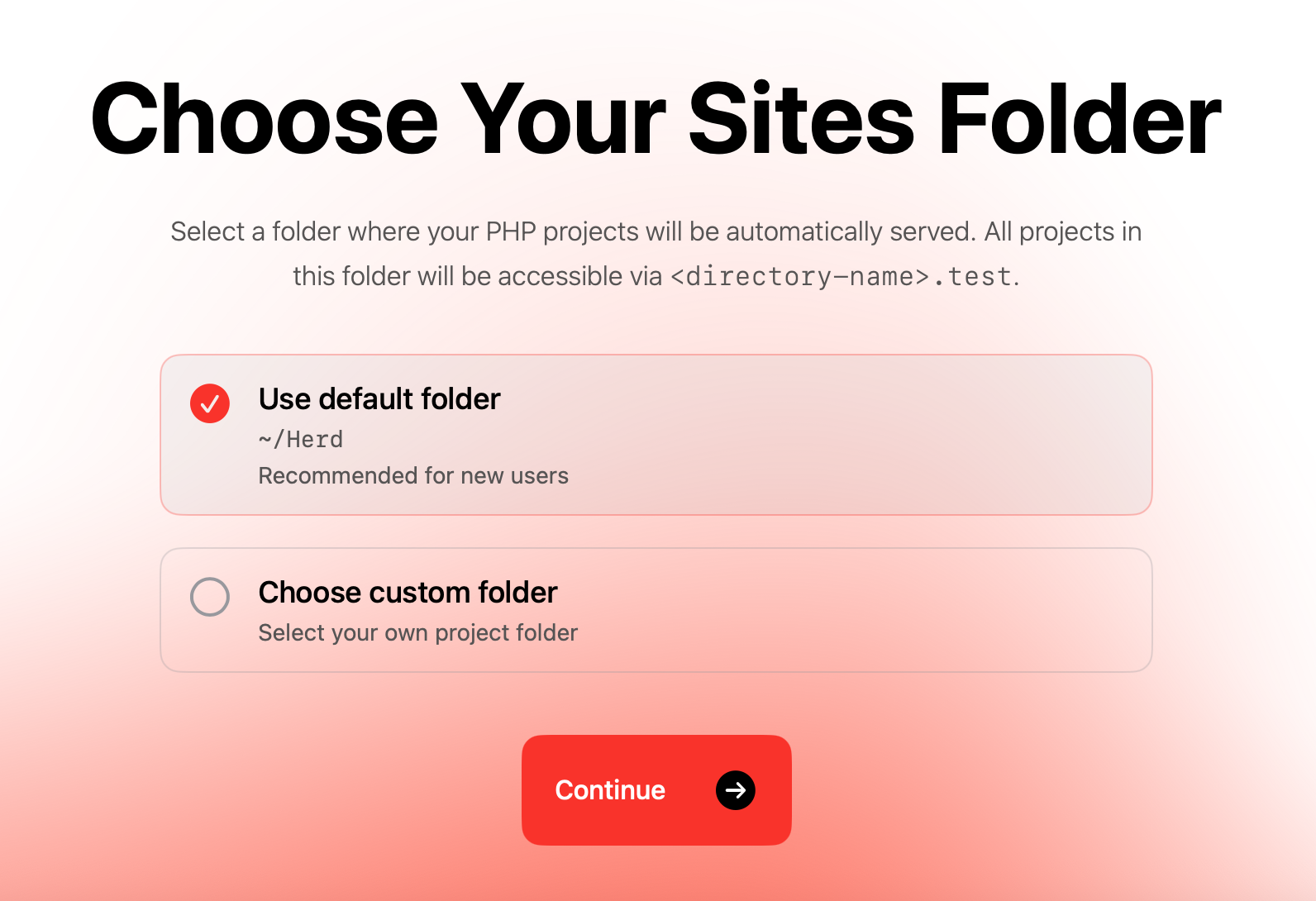
* Select “Use default folder” and click “Continue”.
Node.js and NVM: For now, you can select “Skip for now.”
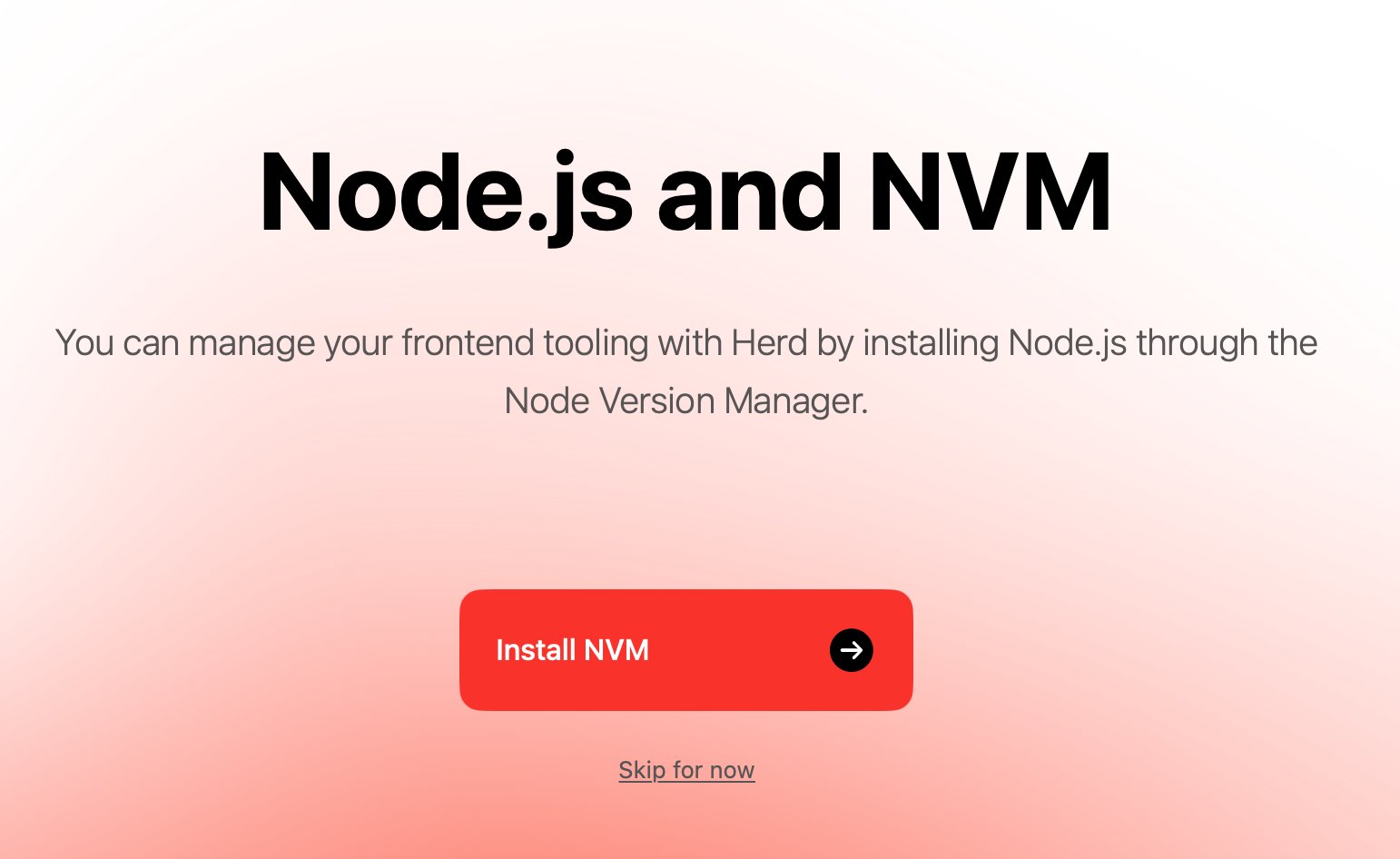
* As of April 2026, we recommend using “fnm” instead of “NVM”.
Herd Pro: A screen for entering a license key will appear, but the free version is sufficient for WordPress development. Select “Skip for now.”
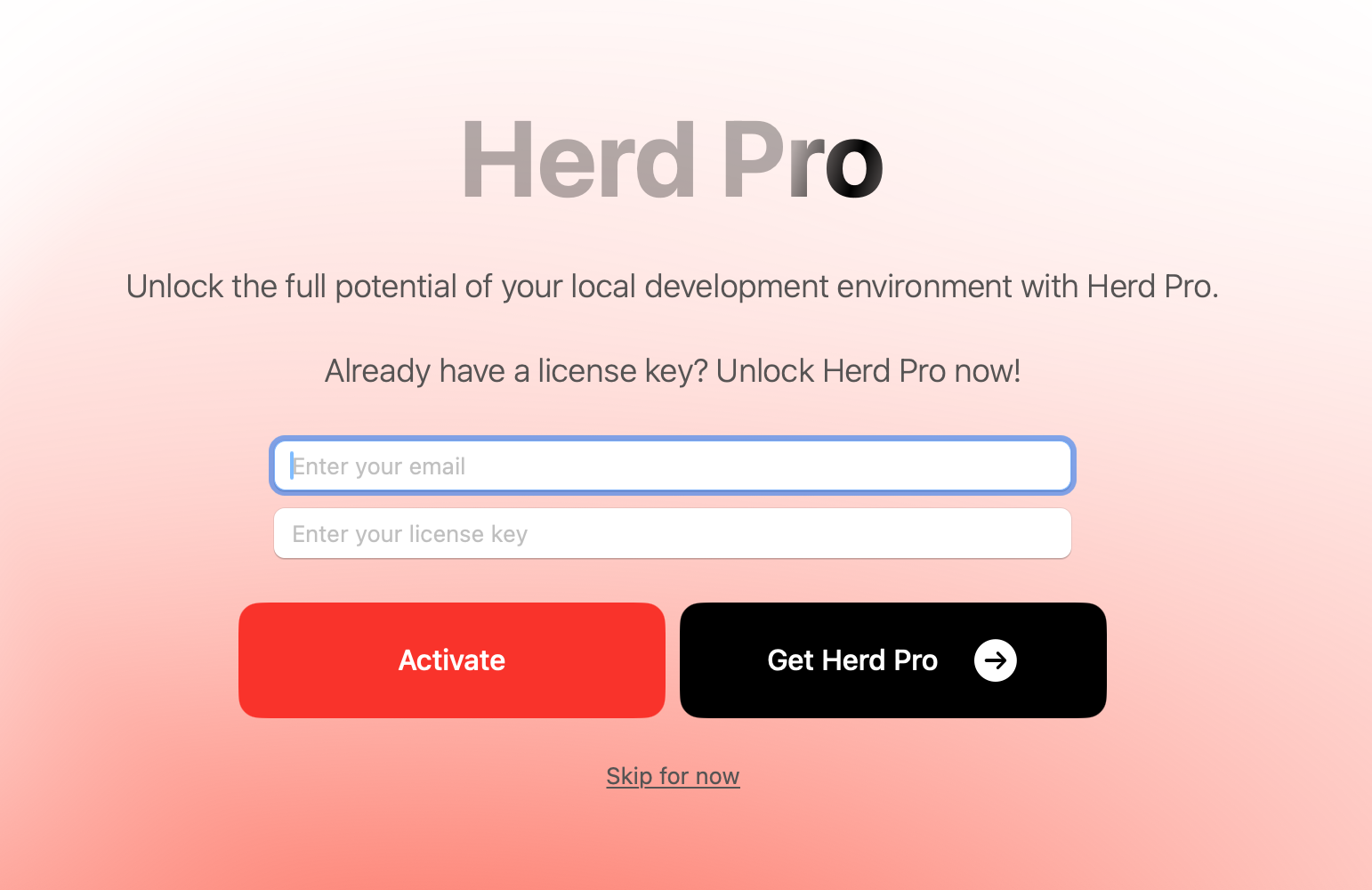
* You can activate the Pro version at any time later.
Finally, click “Let’s get started” to finish. The Herd icon will appear in the menu bar, allowing you to access PHP settings and site management at any time.
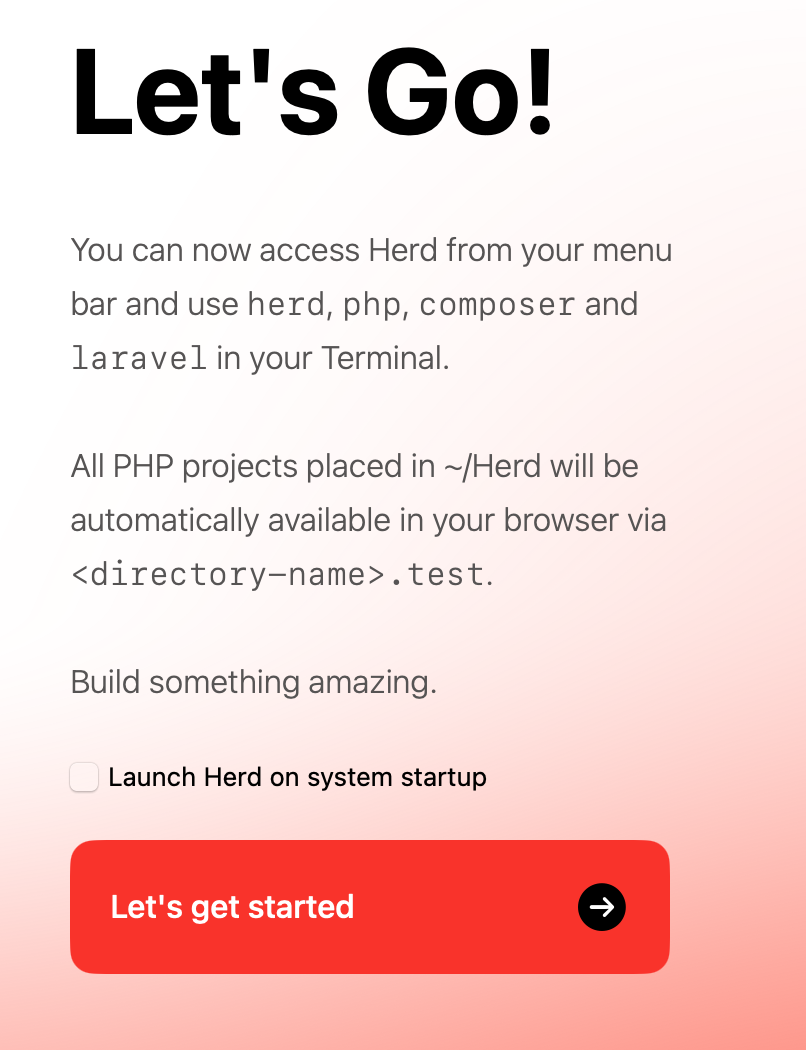
* Setup completion screen. The commands herd, php, and composer are now available in the Terminal. If you want Herd to launch when your Mac starts up, check the box next to “Launch Herd on system startup.”
STEP 2: Installing DBngin and Starting MariaDB
Click “Download For Mac” on the DBngin official website to download the DMG file.
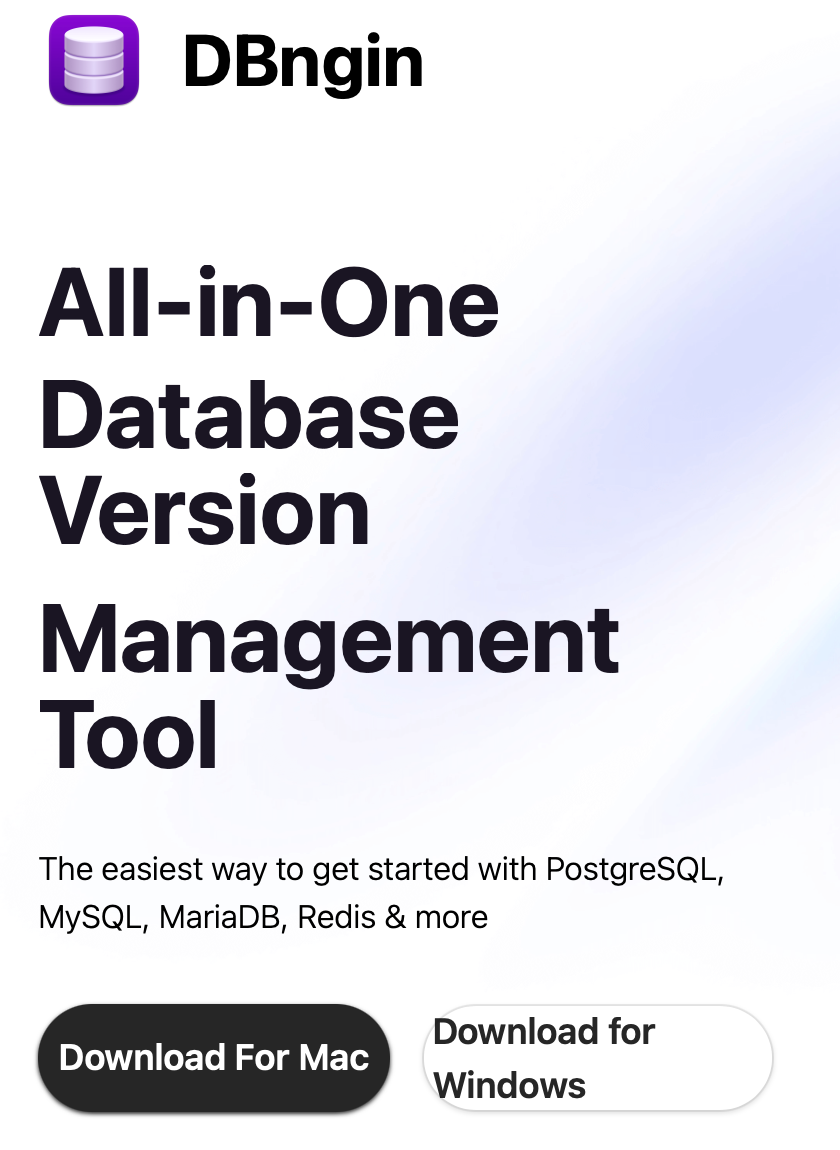
* DBngin official website. Supports MySQL, MariaDB, PostgreSQL, and Redis.
Just like with Herd, drag and drop it into the Applications folder, and when prompted for security confirmation upon first launch, select “Open.”
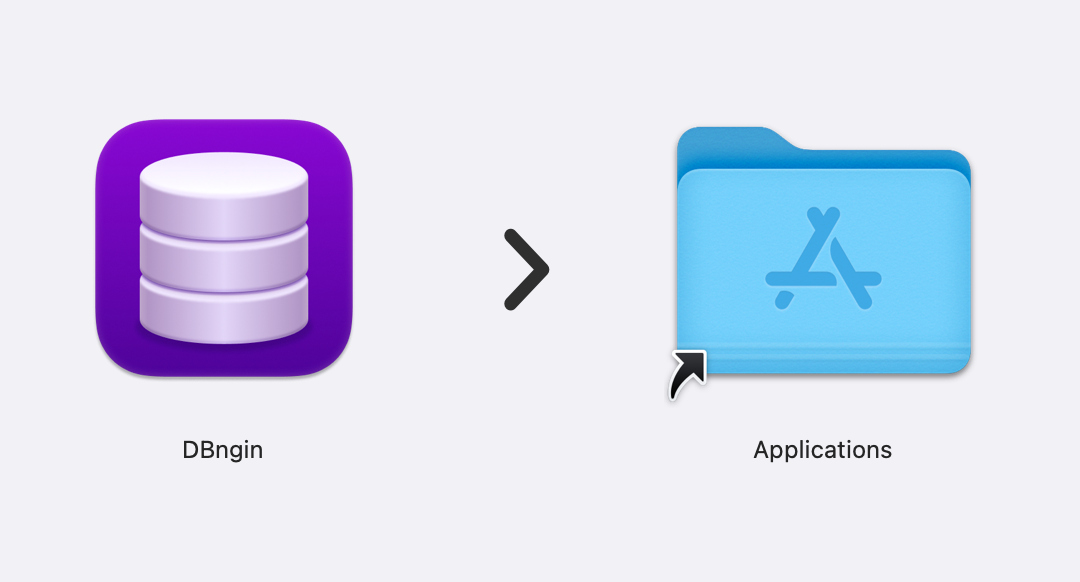
* DBngin is also installed via drag-and-drop.
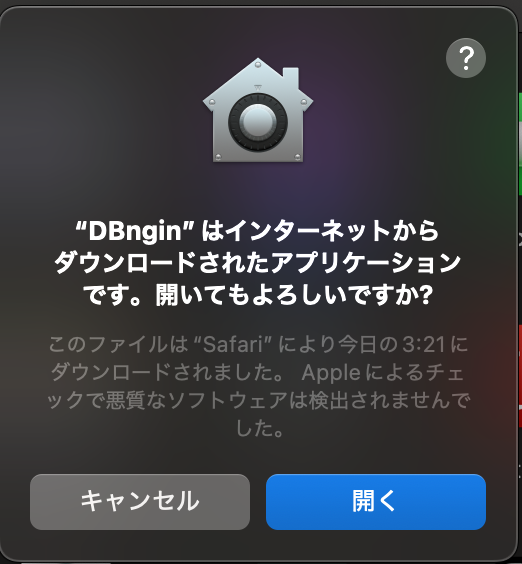
* When the security prompt appears, select “Open.”
Creating a MariaDB Server
After launching DBngin, click the ” ” button in the upper-left corner. A menu for selecting the database type will appear; choose “MariaDB” (MySQL is also acceptable).
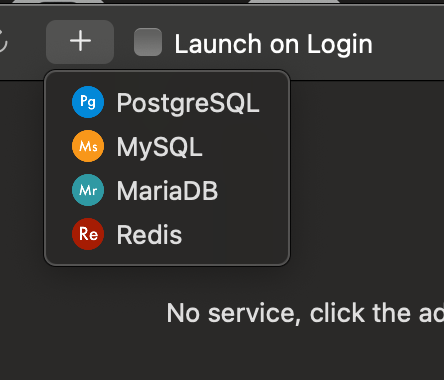
* You can choose from PostgreSQL, MySQL, MariaDB, or Redis. For WordPress, select MariaDB or MySQL.
On the server creation screen, configure the settings as follows:
- Version: Select the latest ARM version (for Apple Silicon Macs)
- Name: Any name (e.g.,
wordpress-dev) - Port:
3306(default) - You can leave the other settings at their defaults
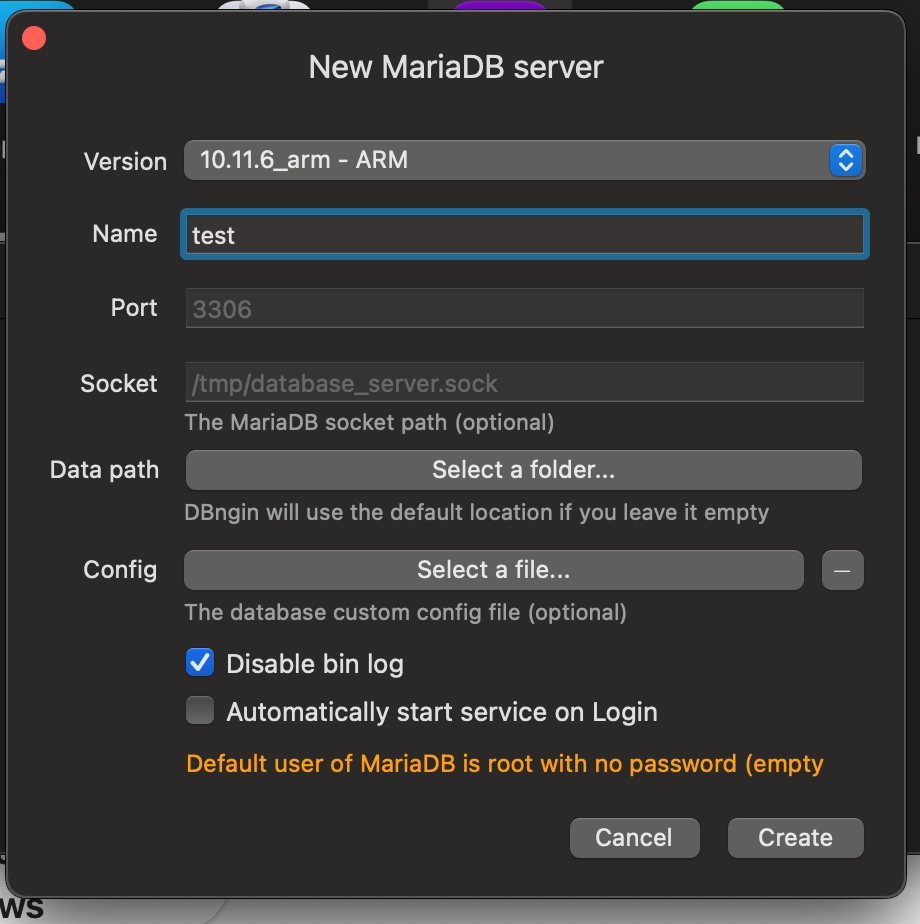
* Select MariaDB 10.11.6 (ARM version) and configure the name and port.
After clicking “Create,” press the “Start” button for the created server to launch it. If the indicator turns green, the DB server is running.
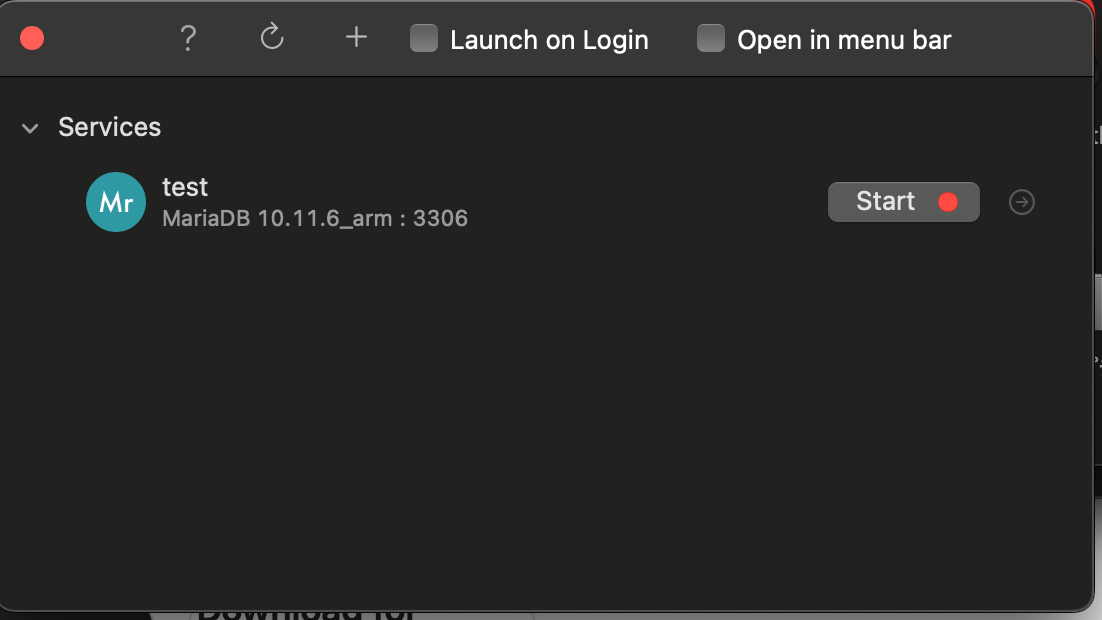
* Click “Start” to launch the server. If you want to start DBngin when your Mac starts up, make sure to check the “Launch on Login” box.
In the default DBngin configuration, the username isrootand the password is blank. You will use this informationwp-config.php.
Setting the path for the mysql command
To usewp db createcommands, you must be able to accessmysql. Let’s add the MariaDB binaries used by DBngin to the PATH.
# MariaDBのバイナリディレクトリに移動(バージョン名はTab補完で辿ってください)
cd /Users/Shared/DBngin/mariadb/[Tab]/bin

# パスを.zshrcに追加
echo "export PATH="$(pwd):$PATH"" >> ~/.zshrc
source ~/.zshrc
After setting this up,mysql --versionif the version is displayed, the setup was successful.
STEP 3: Installing WP-CLI
WP-CLI is a tool for managing WordPress from the command line. We’ll install it now so we can use it during the WordPress setup later.
curl -O https://raw.githubusercontent.com/wp-cli/builds/gh-pages/phar/wp-cli.phar
chmod  x wp-cli.phar
sudo mkdir -p /usr/local/bin
sudo mv wp-cli.phar /usr/local/bin/wp
wp --info
wp --infoRun the command, and if the PHP version and path are displayed, the installation is complete. Depending on your Mac environment,/usr/local/binmay not exist, sosudo mkdir -pyou can create it in advance using
STEP 4: Deploying WordPress and Creating the Database
Now we get to the main part. We’ll install WordPress in the Herd management directory and connect it to the database.
Increasing PHP’s memory_limit
wp core downloadWhen running the script, you may encounter errors due to insufficient PHPmemory_limit. Edit thephp.inito increase the limit.
# PHP 8.4の場合(バージョンに応じて84の部分を読み替えてください)
vi "/Users/$(whoami)/Library/Application Support/Herd/config/php/84/php.ini"
Press “i” (half-width) to enter edit mode, find “memory_limit” in the file, and change it to 256M or higher. Press “Esc” to exit edit mode, then type “:wq” to save the changes.
memory_limit=256MOnce saved, restart Herd or click “Stop / Start PHP processes” from the Herd icon in the menu bar to apply the changes.
Downloading and Installing WordPress
Press ⌘ Space to open Spotlight Search, type “ter” or similar, and open Terminal.
cd ~/Herd
mkdir my-wordpress-site
cd my-wordpress-site
wp core download
wp core downloadThis will download the latest version of WordPress. If you want to download the Japanese version,wp core download --locale=jaspecify the appropriate version.
Configuring wp-config.php
Use WP-CLI towp-config.phpto generate the file and configure the database connection information.
cp wp-config-sample.php wp-config.php
wp config set DB_NAME my_wordpress_site
wp config set DB_USER root
wp config set DB_PASSWORD ''
wp config set DB_HOST 127.0.0.1:3306
The key point isDB_HOST.localhostSpecify127.0.0.1:3306. Since Herd’s PHP connects to DBngin via a TCP connection rather than a socket connection,localhostusing `’` may result in an “Error establishing a database connection” error.
Creating the Database and Installing WordPress
wp db create
wp core install
  --url='https://my-wordpress-site.test'
  --title='My WordPress Site'
  --admin_user='admin'
  --admin_password='password'
  --admin_email='[email protected]'
wp db createcreates the database,wp core installand the initial WordPress setup is completed. While you can proceed through the standard setup screen in a browser, running it all at once via WP-CLI is faster and less prone to configuration errors.
Once complete,https://my-wordpress-site.test. If the WordPress homepage appears, you’ve succeeded. The admin dashboard ishttps://my-wordpress-site.test/wp-admin/.
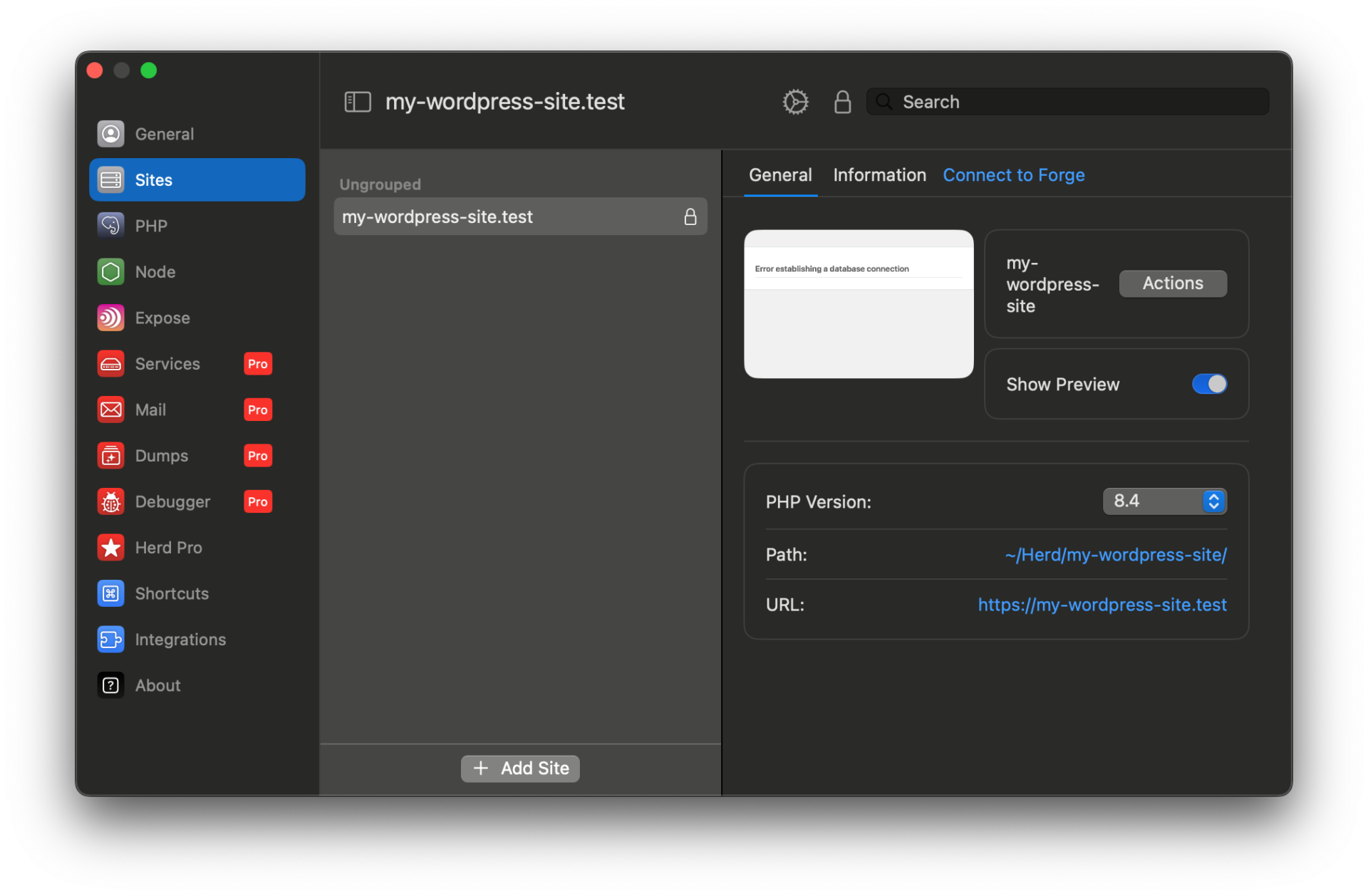
* Herd admin panel. “my-wordpress-site.test” will appear in the site list, and you can check the PHP version and path. Simply click the “lock” icon to enable SSL.
STEP 5: Adding a Site
Establishing Site Naming Rules
Since folder names become the URL in Herd, it makes management easier if you decide on a naming convention for directories from the start. For example,client-a.testif you standardize them based on project names, you won’t get confused when managing URLs.
Changing URLs later can affect WordPress serialized data and image paths, so it’s recommended to decide on this at the initial stage.
Managing Multiple Sites
One of the major advantages of Herd DBngin is that managing multiple sites is extremely simple.
~/HerdCreate a new directory under the root- Download WordPress into that directory
- Create a new database in DBngin (you can create multiple databases on the same MariaDB instance)
wp-config.phpConfigure it by simply changing the database name
That’s all it takes to get a new sitehttps://新しいディレクトリ名.test. Unlike on a local machine, you don’t need to add a site via the GUI every time.
# 2つ目のサイトを追加する例
cd ~/Herd
mkdir another-site && cd another-site
wp core download --locale=ja
cp wp-config-sample.php wp-config.php
wp config set DB_NAME another_site_db
wp config set DB_USER root
wp config set DB_PASSWORD ''
wp config set DB_HOST 127.0.0.1:3306
wp db create
wp core install
  --url='https://another-site.test'
  --title='Another Site'
  --admin_user='admin'
  --admin_password='password'
  --admin_email='[email protected]'
Troubleshooting
“Error establishing a database connection” appears
This is the most common issue. Please check the following in order.
- Is the DBngin server running? Open DBngin and verify that the indicator light is green
- DB_HOST specification:
wp-config.php‘sDB_HOSTis127.0.0.1:3306.localhostIf set to , it may result in a socket connection failure - Port number match: Verify that the port configured in DBngin
DB_HOST. - Database existence:
mysql -u root -h 127.0.0.1 -P 3306 -e 'SHOW DATABASES;'Check if the database has been created
A memory shortage error occurs during the WP Core download
PHP’smemory_limitis set to the default128M, the WordPress core download may stop due to insufficient memory. Please set it to256M.
MySQL command not found
This occurs when the path to the MariaDB/MySQL binaries in DBngin is not set. Please follow the “Setting the path to the mysql command” instructions in STEP 2. After setting the path,source ~/.zshrc.
Site returns “Not Found” in Herd
Please verify that the directory is~/Herdis correctly placed in the root directory. If you installed WordPress inside a subdirectory (e.g.,~/Herd/projects/my-site), Herd will not recognize it. Be sure to~/Herd/my-siteplace it in the root directory as shown.
Frequently Asked Questions
Can Herd be used on Windows?
Yes. A Windows version of Herd has been available since 2024. However, since DBngin also supports Windows, the steps in this article can be applied almost exactly as written.
Should I choose MySQL or MariaDB?
WordPress works with either. If your production server uses MySQL, choose MySQL; if it uses MariaDB, choose MariaDB to minimize environmental differences. If you’re unsure, MariaDB is recommended. It is listed in WordPress’s recommended environment and is MySQL-compatible and lightweight.
Can I migrate my existing local site to Herd?
Yes, you can. Copy the WordPress files from your local site directory~/Herdand import the local database into DBngin.wp-config.phpDon’t forget to update the database connection information.
How do I deploy a WordPress site created locally to the production server?
rsyncSynchronize the files using [tool],wp db export / wp db import / wp search-replaceand migrate the database. We plan to explain the detailed steps in a separate article.
Which is better, Docker or [Herd]?
Docker excels in team development and scenarios where exact matching with the production environment is required. For individual use cases such as WordPress theme development or plugin testing, Herd DBngin has the edge due to its fast startup time and low resource consumption.
Summary
With Herd DBngin, you can set up a lightweight and fast WordPress local environment on a Mac in just a few minutes.
- Herd: A native PHP environment that sets up PHP, nginx, and Composer with a single click
- DBngin: A database tool that lets you easily manage MariaDB/MySQL via a GUI
- Since you can add sites simply by creating folders, it’s ideal for managing multiple sites
- Since it doesn’t use virtualization like Docker, CPU and memory consumption is low
- Combined with WP-CLI, it’s comfortable even for developers accustomed to command-line operations
If you’re satisfied with Local or MAMP, there’s no need to switch, but if you’re concerned about slow startup times or high resource consumption, it’s worth giving it a try. Herd and DBngin are particularly strong options if you’re aiming for theme development with Vite or an efficient workflow using WP-CLI.

Comment